If you’ve ever used an “online image converter”, you’ve probably had the same two concerns: privacy (do I really want to upload personal photos?) and speed (why is this taking so long?). This project exists to remove both trade‑offs by doing the work where your images already are: inside the browser.
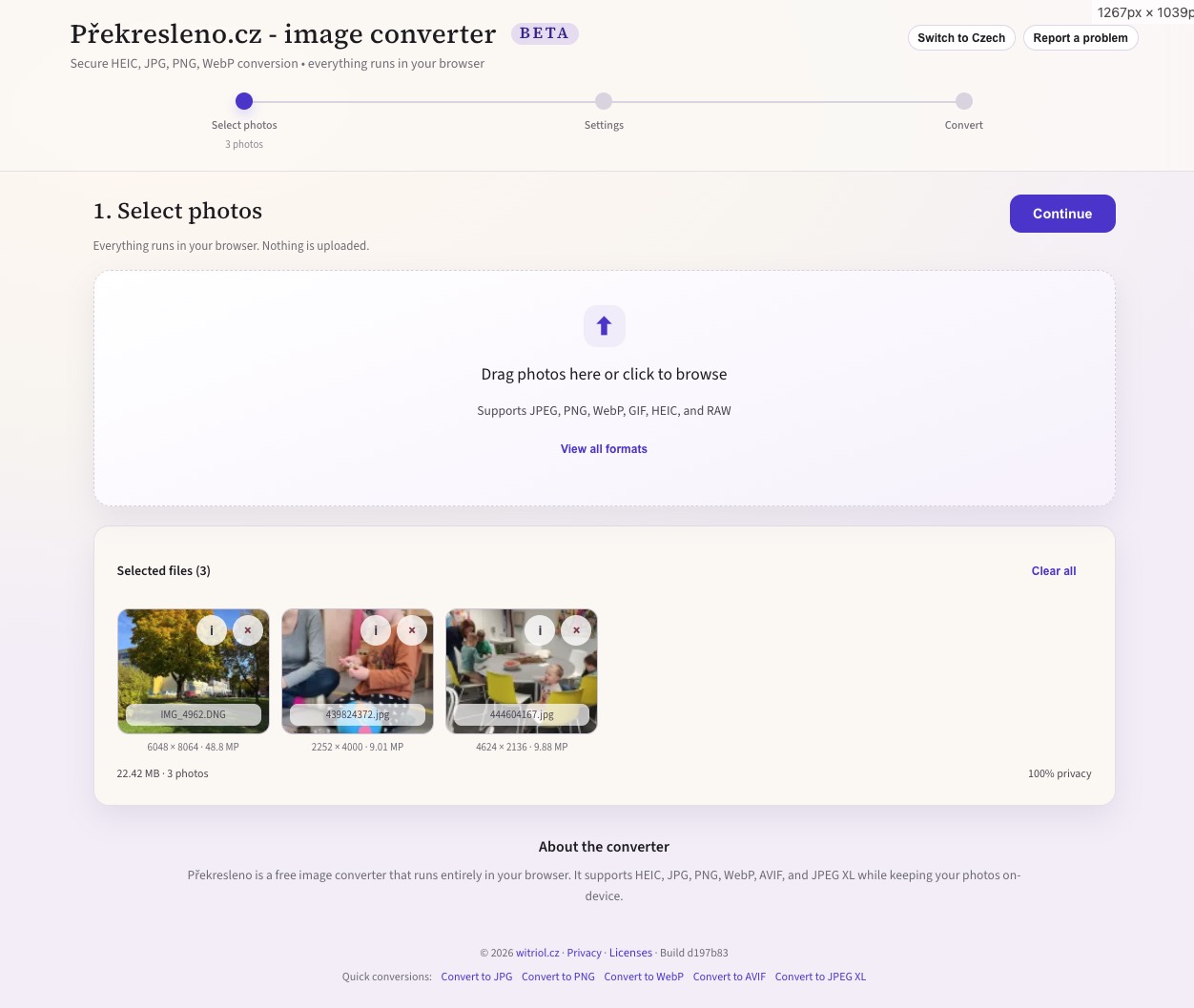
The app is a modern image converter that runs entirely client-side. You drop in images (including iPhone HEIC/HEIF and camera RAW files), choose an output format and settings, and download the results—individually or as a ZIP. No uploads. No accounts. No waiting on a server.
Try it on Překresleno.cz.
TL;DR
- A privacy-first image converter that runs 100% in your browser (no uploads).
- Handles HEIC/HEIF from iPhone and extracts previews from many RAW formats.
- Exports PNG/JPEG/WebP/AVIF (+ JPEG XL beta) and supports batch + ZIP downloads.
What the app does
- Converts common formats (JPEG/PNG/WebP/GIF) and also handles HEIC/HEIF and RAW inputs.
- Exports to PNG, JPEG, WebP, AVIF, and JPEG XL (beta).
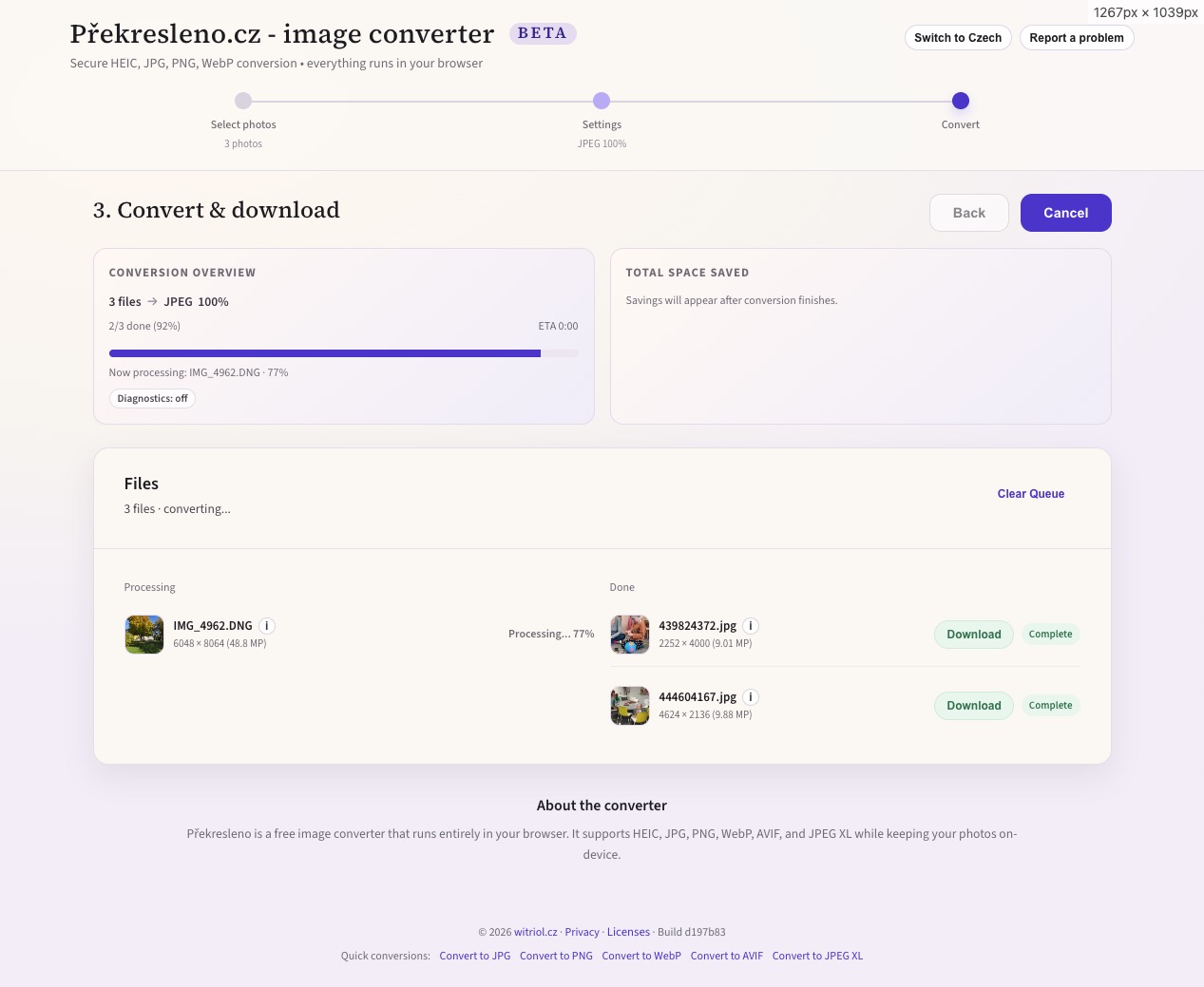
- Supports batch conversion with per-file progress, thumbnails, and a conversion summary.
- Offers practical resize options (max resolution or max megapixels) to keep outputs lightweight.
- Lets you control quality for lossy formats and provides an “auto” option that adapts to the input.
- Keeps things download-friendly with single downloads or download all as ZIP.
- Stays “privacy first”: image processing happens locally, without sending files to a backend.
How to use it (in ~30 seconds)
- Open the app and drop your photos onto the upload zone (or click to browse).
- Pick an output format (JPEG, PNG, WebP, AVIF, or JPEG XL).
- (Optional) Adjust quality (for lossy formats) and set a resize limit (pixels or megapixels).
- Click Convert, then download single files or “Download all” as a ZIP.
How it’s built (and why WebAssembly matters)
The core design goal is simple: do real image conversion in the browser, including modern codecs, without freezing the UI.
1) Client-side pipeline: decode → resize → encode
At a high level, each file goes through the same stages:
- Decode the input into pixels (or a browser-native representation like
ImageBitmap). - Resize if the user selected a target resolution/megapixel cap.
- Encode to the chosen output format.
- Produce a
Blobfor download (and optionally package multiple blobs into a ZIP).
2) HEIC and RAW support without servers
Some “online converters” rely on server-side tooling for HEIC and RAW. This app keeps it local:
- HEIC/HEIF input is decoded using a libheif WebAssembly build (via
heic-to/heic-decode). When the browser can’t decode HEIC natively, the WASM decoder turns the HEIC file into raw RGBA pixels that the rest of the pipeline can use. - RAW input is handled pragmatically: instead of full RAW demosaicing, the app uses
exifrto extract the embedded preview JPEG most cameras store inside the RAW container. It’s fast, works in-browser, and is often “good enough” for sharing and quick conversions.
Limitations (good to know)
- RAW support is preview extraction, not full RAW development (no demosaicing, no tone curves, no color science controls).
- AVIF and JPEG XL can be CPU-intensive, so big batches (or very large megapixel images) can take longer.
- Browser support differs by format (especially AVIF/JPEG XL), and some devices may run out of memory on extremely large images.
3) Web workers keep the UI responsive
Encoding (especially AVIF/JPEG XL) can be heavy. To avoid blocking the main thread, the app pushes expensive steps into a module web worker:
- The worker dynamically imports the encoder for the target format (WebP/AVIF/JXL/JPEG).
- Pixel buffers are sent using transferable
ArrayBuffers to reduce memory copies. - If worker initialization fails, the app falls back gracefully to main-thread encoding.
This separation is what makes “convert 30 photos” feel like an app instead of a frozen tab.
4) WebAssembly codecs in the browser
The key enabler is WebAssembly: codec implementations that normally live in native binaries can run safely inside the browser sandbox.
This project uses the @jsquash/* family of codecs to encode modern formats like WebP, AVIF, and JPEG XL. In practice that means:
- You get proper codec implementations running inside the browser sandbox.
- You don’t need a server farm for CPU-heavy work.
- You can do sensitive conversions (personal photos, private documents) without sending data anywhere.
5) Shipping codecs as offline-capable vendor assets
WASM codecs and heavy client dependencies are prepared as local vendor bundles and cached for offline use:
- A setup script stages codec assets into
public/vendor/. - A service worker precaches critical app files and vendor bundles, so the app can keep working even with flaky connectivity.
The net effect is that after the first load, the converter behaves more like an installed tool than a typical website.
Quick benchmark: how formats compare
Actual results depend on content (photo vs. UI screenshot), dimensions, and quality settings, but you can still treat format choice as an optimization problem with predictable patterns.
Here’s a practical “rule-of-thumb benchmark” for a typical photo (no transparency):
| Output format | Typical file size | Encode speed | Best for |
|---|---|---|---|
| JPEG | Baseline | Fast | Photos, maximum compatibility |
| WebP | ~10–30% smaller than JPEG | Medium | Photos on the web, solid support |
| AVIF | ~20–50% smaller than JPEG | Slower | Best compression when you can afford time |
| PNG | Often 2–6× larger than JPEG | Medium | UI graphics, screenshots, transparency, lossless needs |
| JPEG XL (beta) | Often smaller than JPEG at similar quality | Slower | Experiments, high quality, forward-looking workflows |
Which format should you choose?
- Choose JPEG when you need maximum compatibility and fast conversions (especially for photos).
- Choose WebP for modern web usage when you want smaller files without the slowest encode times.
- Choose AVIF when file size matters most and you can wait a bit longer for encoding.
- Choose PNG for screenshots, graphics, or anything with transparency (and when “lossless” matters).
- Choose JPEG XL (beta) if you’re experimenting or you know your workflow supports it.
Conclusion: why this approach is worth it
Running conversion locally—powered by WebAssembly—brings a few concrete benefits:
- Privacy by default: files stay on the device; there’s nothing to upload or leak.
- Speed and scalability: your CPU does the work, so the app doesn’t slow down under load.
- Offline-friendly: cached assets let the converter keep working without reliable network access.
- Modern formats made accessible: WebP/AVIF/JPEG XL become one click away, even from HEIC.
- Lower operational cost: no server-side image processing pipeline to run, secure, and scale.
In short: it’s an “online tool” that behaves like a local app—because, technically, it is.